Saturday, 31 October 2015

Tools in Photoshop

Photoshop Tools experimentation


Shutter Speed & Light Painting


Shutter Speed
 
Shutter speed, also known as “exposure time”, stands for the length of time a camera shutter is open to expose light into the camera sensor. If the shutter speed is fast, it can help to freeze action completely. If the shutter speed is slow, it can create an effect called “motion blur”, where moving objects appear blurred along the direction of the motion. This effect is used quite a bit in advertisements of cars and motorbikes, where a sense of speed and motion is communicated to the viewer by intentionally blurring the moving wheels.
 
 
Slow Shutter Speed
 
I have used a slow shutter speed to create the drawing with light photographs. 


Pablo Picasso


Aperture and Depth of Field

Aperture

Aperture refers to the lens opening inside a photographic lens. The size of the opening in a camera lens REGULATES the amount of light passing through into the recording medium inside the camera at point of exposure.

Aperture Priority 

 When you use the Semi Automatic mode, you can change the F number on the camera which changes the aperture and the camera automatically changes the Shutter Speed.

Shutter Speed

Shutter speed= Time
(Fractions of time)

ISO

ISO=The lower the ISO number, the less sensitive it is to the light, while a higher ISO number increases the sensitivity of your camera.


 My photography using depth of field 


Large apature


medium aperture


Small aperture 
 
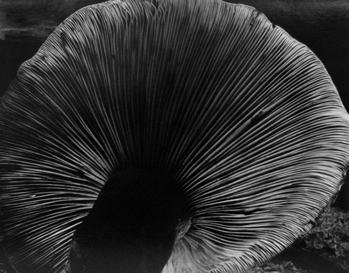
Edward Weston
 
Edward Henry Weston (March 24, 1886 – January 1, 1958) was a 20th-century American photographer. He has been called "one of the most innovative and influential American photographer and "one of the masters of 20th century photography."


Thursday, 8 October 2015

Selection Tool in Photoshop


Selection Tools


Marquee Tool: Allows you to drag basic rectangular and ellipse shaped selections.

Hold down the shift key to "constrain proportions" (keep the height and width the same).


Deselect: Gets rid of any selected areas- Select > Deselect = Apple Key + D


Lasso/Polygonal Lasso/Magnetic Lasso Tools

Lasso: Click and hold to outline a selection- joins the two ends of the line when you let go.

Polygonal Lasso: Click point-to-point to outline a selection with straight edges- double click to join the two ends.

Magnetic Lasso: Works similar way to there polygonal lasso, but Photoshop tries to find or stick to any edges that you move the mouse over between clicks.


Add to/ subtract from selection:

Hold down the shift key when you begin selection a second area to 'add' it to an existing selection.

Hold down the command key (apple key) when you begin selecting a second area to 'subtract' any overlapping areas from an existing selection.

You can change to a different selection tool before adding/subtracting areas to create different selection shapes.

Invert Selection: Switches the selection area (s) to deselected and the deselected area(s) to select.
Select > Inverse = Shift + Apple Key+ i


Anti-Alias/Feather

The anti-alais checkbox allows you to 'smooth' the edges of a selection to avoid a 'pixel-y' edge.

Feather: The amount of feathering (blurring) you add the edge of a selection (measured in pixels) instead of a hard edge. This can be used to make a selections 'fade out'.

The amount of Feathering can be changed between adding/subtracting selections.

 Magic Wand: Click once to select an area that is all the same colour. You can adjust the Tolerance to make it either select just one exact colour (0) or pick a wider range of colours (maximum value is 255). If the Contiguous checkbox (meaning joined or touching) is ticked the area selected will only be one area that colour, is its un-ticked all of those colours throughout the image will be selected.


Wednesday, 7 October 2015

Clipping Masks

Clipping Masks in Illustrator


You can create the shape of you vectorised clipping mask using a variety of tools:

Shape Tool: Press and hold the icon for different shapes in the tool bar. You can then either dray the shape to create it, or click once to open a dialog box allowing you to chose the size and number of sides if you are creating a polygon (shape with multiple sides- triangles, pentagons, hexagons etc.)

Pen Tool (P): Click points and join to make a path. 

Type Tool (T): Click to insert the text or dray a text box to fit text into. You can set the font and size etc. In the controls bar at the top[ of the window. 

Once you have created created your shape, you need to place an image into fit it into it:


Click File>Place and choose your image from dialog box.

Using the Selection tool (v) select your image, then click Object>arrange >send to back or use the layers palette to arrange your shape and image. 


You shapes need to be in front of your image to properly apply the clipping mask. 


To apply the clipping mask: 


Select both the image and shape, then click Object> Clipping Mask > Make


If you want to create a clipping mask from multiple shapes, you first need to group them all as on Compound Path. To do this select all of the shapes and then click Object > Compound Path > Make. You can then place an image and apple the clipping make in the same way as you would with a single shape. 

My clipping mask creation


Monday, 5 October 2015

Film Cameras- Chemigrams

In this workshop we were experimenting with film cameras. We had a variety of subjects in the studio to photograph:
- Sunflower placed on a black background with one light source
- Stone and fircone (as above) 
- Marmite jar (as above) 
- Doll on a white background with a constant bright light and a second light to the left. 

We also took the camera outside and photographed locations around college these used natural light. 

We used manual controls on the camera to adjust the aperture and shutter speed depending on the amount of light coming into the camera lens. 
For example if it was a really bright day and there was a lot of light the aperture needed would be smaller; the F number would be larger. If there is a shaded area you would need a smaller F number so that more light can get in. 

To process the film negatives you have to open the camera and take out the film in a bag so that it is not exposed to the light. Next wind it into a reel, put it in a container with a kid on to make it light right. 
Use chemicals to fix the image onto the film. 
To develop the film first do a test strip to calculate how long to expose the image for. 
The longer it is exposed the darker the image will be. I desired to expose mine for 6 seconds to create the contact sheet. 

I chose 2 images to enlarge; for each one I did a test strip - for the stone and fir cone I decided that 6 seconds would be best because it gave a good range of tones from light to dark. 

To enlarge it - put the film strip into the holder in the enlarger so the your image is in the window. Focus the image so the image is sharp and fits into the piece of photographic paper. Time it for 6 second then put the paper into the development chemicals for 2 mins
Stop bath for 30seconds 
Fix for 5 mins
Wash for 10mins
Dry